Kiosk Printer Driver vs SDK vs ESC/POS: Which Integration Method Should You Use?

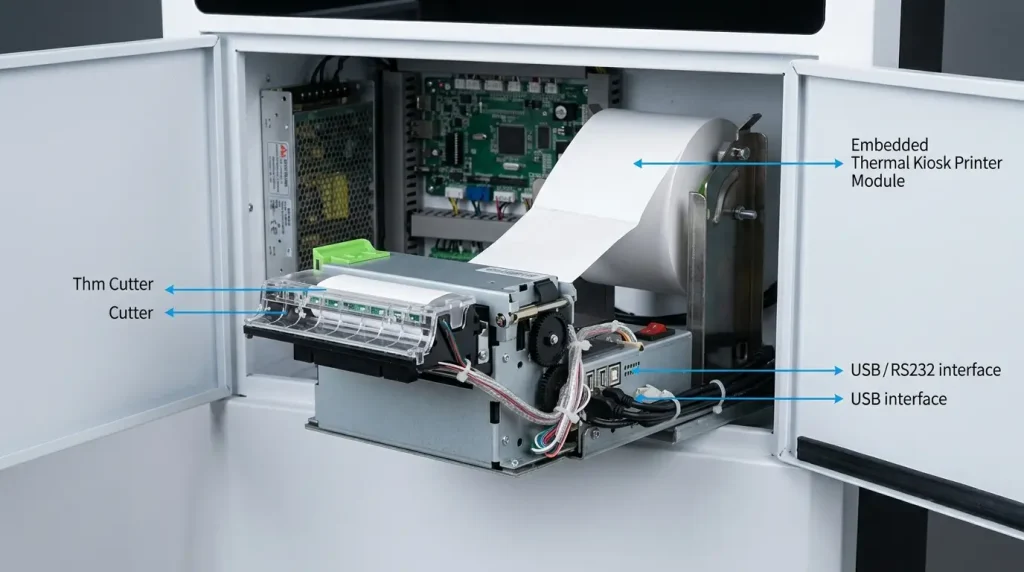
Connecting a kiosk printer to the host computer is only the first step.
After USB or RS232 communication is available, the kiosk application still needs a software method to send print data, control supported printer functions and, where required, access device status.
This is where terms such as printer driver, SDK/API and ESC/POS often become confusing.
They describe different parts of the integration architecture:
USB / RS232 = Communication Interface
ESC/POS = Printer Command Language
Driver = Operating-System Printing Layer
SDK / API = Application Development Layer
These are not necessarily competing choices. Depending on the printer and application architecture, a kiosk may use one or more of them.
This guide explains how a kiosk printer SDK differs from a driver and direct ESC/POS commands, and what system integrators should check when developing Windows, Android or Linux kiosk applications.
Quick Answer
A printer driver, SDK and ESC/POS solve different integration problems.
A printer driver lets applications print through the operating system’s printing architecture. A kiosk printer SDK provides programming functions for application-level printer integration. ESC/POS is a printer command language used to control supported printing functions directly.
They are not mutually exclusive.
The appropriate method depends on the host operating system, application architecture, communication interface, required printing functions, device-status requirements and software resources supported by the exact printer.
The correct question is therefore not:
“Which one is best?”
but:
“Which software layer does this kiosk application need?”
1. Driver, SDK, ESC/POS and USB Are Different Integration Layers
Before choosing a software integration method, separate the different layers of the printer architecture.
| Term | Integration Layer | Main Purpose |
|---|---|---|
| USB / RS232 | Communication | Transfers data between host and printer |
| ESC/POS / Printer Commands | Command language | Defines supported printer commands |
| Printer Driver | Operating system | Provides OS-level printing access |
| SDK / API | Application development | Provides programming functions for integration |
This distinction is important because these terms answer different questions.
USB or RS232 answers:
How does data travel between the host and printer?
ESC/POS or another printer protocol answers:
What commands does the printer understand?
Printer driver answers:
How does the operating system expose printing to the application?
SDK/API answers:
How can application software call supported printer functions?
Therefore:
A physical interface does not define the printer command language, and a printer SDK is not a communication interface.
A kiosk integration may involve several of these layers at the same time.
2. What Is a Kiosk Printer Driver?
A printer driver provides a software layer between the operating system, application and printer.
A simplified architecture is:
Application → Operating-System Printing System → Printer Driver → Printer
For example, an application may create a receipt or document and submit it through the operating system’s normal printing architecture. The driver then handles the printer-specific output required by that implementation.
Driver-based printing can be suitable when:
- the application already uses the operating system’s printing system;
- standard document or receipt printing is required;
- the development environment supports the required driver;
- extensive direct device control is not necessary.
Windows applications commonly use this architecture, but driver availability depends on the printer and operating system.
Using a driver does not necessarily mean the application has no access to printer-specific functions.
The level of control available through a driver depends on the printer and driver implementation.
Therefore, developers should confirm whether the required functions are exposed rather than assuming that all drivers provide the same capabilities.
3. What Is a Kiosk Printer SDK?
A kiosk printer SDK is a software development package that helps developers integrate supported printer functions into their application.
Depending on the printer and platform, an SDK package may include:
- software libraries;
- APIs;
- programming documentation;
- sample code;
- demo projects;
- printer-control functions;
- supported device-status functions.
A simplified architecture may look like:
Kiosk Application → SDK / API → Printer Communication → Printer
Instead of relying only on the operating system’s standard print workflow, the application can call functions provided by the SDK.
This can be useful for custom kiosk applications that need closer integration with the printer.
However:
SDK availability does not mean every printer function is available through the SDK.
The actual functions depend on the printer model, SDK version, operating system and implementation.
For example, if the application needs paper, cutter, presenter or other device-status information, developers should confirm which states are actually exposed rather than assuming that the existence of an SDK guarantees them.
This is particularly important when implementing kiosk printer status monitoring.
4. What Is ESC/POS in Kiosk Printer Integration?
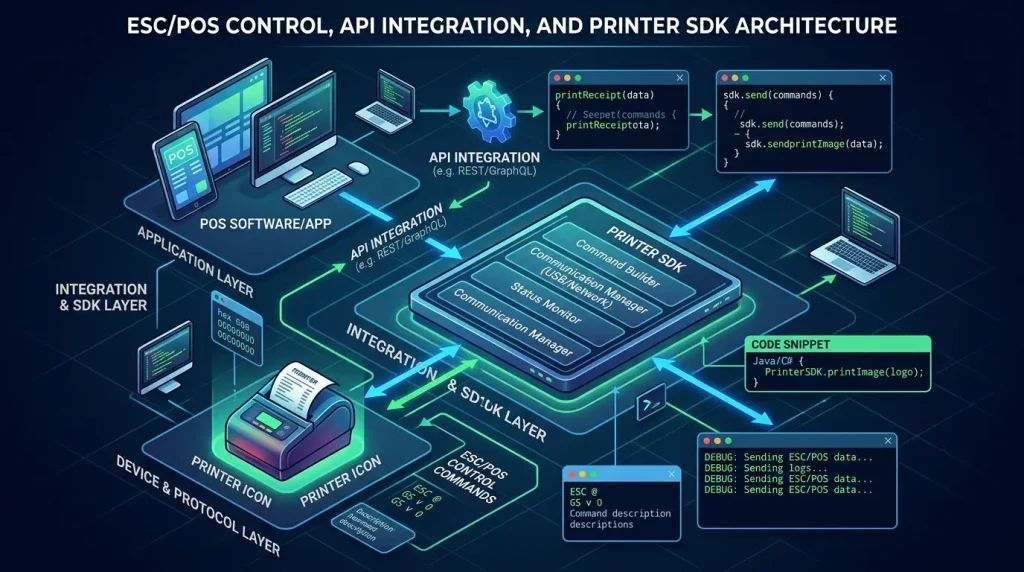
ESC/POS is a printer command system originally developed by Epson for POS printers and related devices. Epson currently describes ESC/POS as a print description language for POS systems and lists it under command-based application development.
Instead of submitting a normal operating-system print job, an application can send supported printer commands.
Depending on the printer implementation, commands may be available for functions such as:
- text printing;
- character formatting;
- paper feeding;
- barcode or QR-code printing;
- image/raster printing;
- cutting;
- supported printer-status operations.
This gives developers another integration path:
Application → Printer Commands → Communication Interface → Printer
However, an important compatibility issue needs to be understood:
ESC/POS support should not be interpreted as universal command compatibility across every printer.
Different printer implementations may support different command subsets, parameters, extensions or device-specific functions.
Therefore, developers should check the command documentation for the exact printer rather than assuming that every ESC/POS-compatible printer will behave identically.
5. Interface vs Command Language vs Software API
One of the most common sources of confusion during kiosk printer integration is mixing the communication interface with the software control method.
A useful model is:
Application
↓
Driver / SDK / Direct Commands
↓
USB / RS232 / Supported Communication Interface
↓
Printer
Each layer has a different role.
USB / RS232: How Does the Data Travel?
USB and RS232 are communication interfaces.
They provide a path between the host and printer.
They do not, by themselves, define what printer commands the application should send.
For more detail on these interfaces, see our USB vs RS232 kiosk printer integration guide.
ESC/POS or Printer Protocol: What Does the Printer Understand?
A command language or communication protocol defines the instructions and responses understood by the printer.
Therefore:
RS232 is not ESC/POS.
RS232 defines a serial communication interface. ESC/POS defines printer commands that may be transported through a supported interface.
Likewise:
USB is not ESC/POS.
A printer can use USB while still receiving a particular command language or data format.
SDK/API: How Does the Application Access Printer Functions?
An SDK provides programming functions that the application can call.
Conceptually:
Application → SDK Function → Communication Layer → Printer
The SDK may abstract some of the lower-level command handling.
Driver: How Does the OS Handle Printing?
A driver integrates the printer with the operating system’s printing architecture.
The application may therefore print through the OS rather than directly generating low-level printer commands.
These layers should be evaluated separately when designing the kiosk software architecture.
6. Driver vs SDK vs ESC/POS: What Is the Difference?
The three approaches can be compared at a high level:
| Integration Method | Main Role | Application Coding | Device-Level Control | Typical Integration |
|---|---|---|---|---|
| Printer Driver | OS-level printing | Low to moderate | Depends on implementation | Applications using OS printing |
| SDK / API | Application integration | Required | Depends on SDK | Custom kiosk applications |
| Direct Commands / ESC/POS | Command-level integration | Required | Depends on command set | Embedded or custom printer control |
The table should not be interpreted as a ranking.
For example, direct commands are not automatically better than using an SDK, and an SDK is not automatically better than using a driver.
“More direct” does not automatically mean “better.”
The appropriate architecture depends on what the kiosk application needs to do.
A relatively simple application may only need to generate and print a receipt.
Another application may need:
- specific cutter control;
- presenter functions;
- printer status;
- custom error handling;
- tighter transaction control.
Those requirements may lead to a different integration architecture.
7. Can a Kiosk Application Use Both a Driver and SDK?
Potentially, yes.
A project may use different software layers for different purposes.
For example, one architecture could use:
Driver → Normal document printing
and:
SDK/API → Supported device-specific control or status
However, this should not be assumed to work automatically.
Whether a driver and SDK can access the same printer within the same application or session depends on the printer software architecture.
Potential considerations include:
- how the printer connection is opened;
- whether exclusive device access is used;
- how print jobs are queued;
- how the SDK communicates with the printer;
- how the application coordinates the two software paths.
Therefore:
Do not assume that a driver and SDK can simultaneously control the same printer without checking the supported software architecture.
If both are required, verify the intended workflow during prototype development.
8. Which Integration Method Should a Windows Kiosk Use?
Windows kiosks can potentially use several printer-integration methods.
These may include:
- Windows printer driver;
- SDK/API;
- direct printer commands or protocol.
The correct choice depends on the application.
If the existing Windows application already produces documents through the standard Windows printing architecture, a driver-based approach may be practical.
If the application needs closer device-level integration, the available SDK or direct communication resources may also need to be evaluated.
Therefore:
Windows does not automatically mean driver-based printing.
Before selecting the architecture, confirm:
- printer model;
- Windows version;
- application framework;
- communication interface;
- required printer functions;
- required status information.
The application architecture should determine which printer software resources are required.
9. Which Integration Method Should an Android Kiosk Use?
Android kiosk applications are often custom-developed, so printer integration should be considered early in the software architecture.
Depending on the printer and host hardware, an Android project may use:
- an Android SDK;
- direct USB communication;
- serial communication through supported hardware;
- direct printer commands or protocol.
An Android SDK can simplify development when it provides the functions required by the application.
However:
Android does not automatically mean SDK-only integration.
Likewise, the presence of a USB port does not prove that the printer can simply be connected and controlled without the required Android software and device-access architecture.
Before development, confirm:
- Android version;
- controller hardware;
- physical communication interface;
- available SDK or protocol;
- required printer functions;
- application permissions/device access;
- status and recovery requirements.
This avoids choosing the printer after the Android application architecture has already been fixed.
10. What About Linux Kiosk Printer Integration?
Linux projects also need to match the printer software resources with the actual host environment.
Depending on the printer, integration may use:
- a Linux driver;
- SDK or library;
- direct printer commands;
- serial or USB communication.
The important point is not simply whether a supplier says:
“Linux supported.”
The project should confirm what that support actually means.
For example:
- Which Linux environment is being used?
- Is a driver available?
- Is source code or an SDK required?
- Can the application access the printer interface?
- Which printer functions are required?
- How will printer errors be handled?
Operating-system compatibility should be verified at the software-resource level, not only as a line in the hardware specification.
11. What If the Kiosk Needs Printer Status Monitoring?
The required level of printer status can significantly affect the software architecture.
Consider two applications.
Application A
The application only needs:
Print this receipt.
Application B
The application needs:
Print this receipt and determine whether the printer is ready, out of paper, reporting a cutter error or experiencing another supported device condition.
These are different integration requirements.
The second application needs to determine:
Which software layer exposes the required printer states?
Depending on the printer, status information may be available through:
- a driver;
- SDK/API;
- direct status commands;
- another supported software interface.
Do not assume that every method provides the same status information.
The printing method should therefore be evaluated together with the status information required by the kiosk application.
For a deeper discussion, see our kiosk printer status monitoring guide.
12. What About Images, QR Codes and Barcodes?
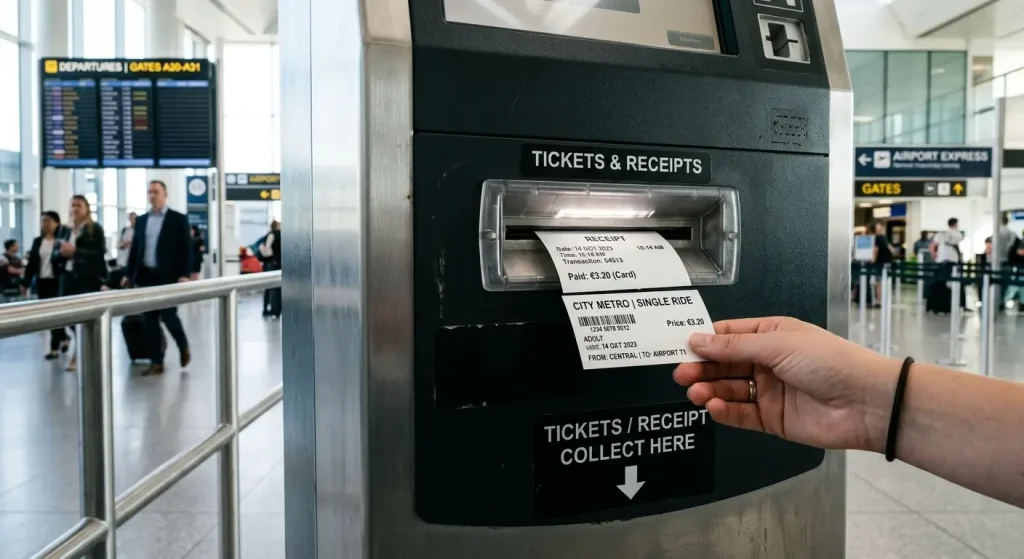
Kiosk receipts and tickets often contain more than plain text.
They may include:
- logos;
- QR codes;
- barcodes;
- graphics;
- multilingual content.
Different software architectures may generate this output differently.
Driver-Based Printing
The application or operating system may render the document before the driver sends printer-specific output.
SDK-Based Printing
The SDK may provide functions for supported text, graphics, barcode or QR-code operations.
Direct Command Printing
The application may generate supported printer commands or raster data directly.
The final paper output may look similar even though the software path is different.
Producing the same printed result does not mean the software integration path is the same.
Therefore, actual production content should be included in prototype testing.
13. Don’t Choose the Integration Method by Download Files Alone
A supplier may provide files such as:
Windows Driver
Android SDK
Linux Driver / SDK
Communication Protocol
Demo Software
These files are development resources, not an instruction to use every available method.
Before selecting which resources the application needs, answer the following questions:
- What operating system does the kiosk use?
- How is the application designed to print?
- Which communication interface will be used?
- Will the kiosk print text only or also graphics?
- Are QR codes or barcodes required?
- Does the application need cutter control?
- Is presenter control required?
- Does the application need printer status information?
- What should happen when communication or printing fails?
Only after these requirements are clear should the integration resources be selected.
Choose the software architecture from the application requirements—not from the number of files available in the download package.
This also helps avoid unnecessary development work.
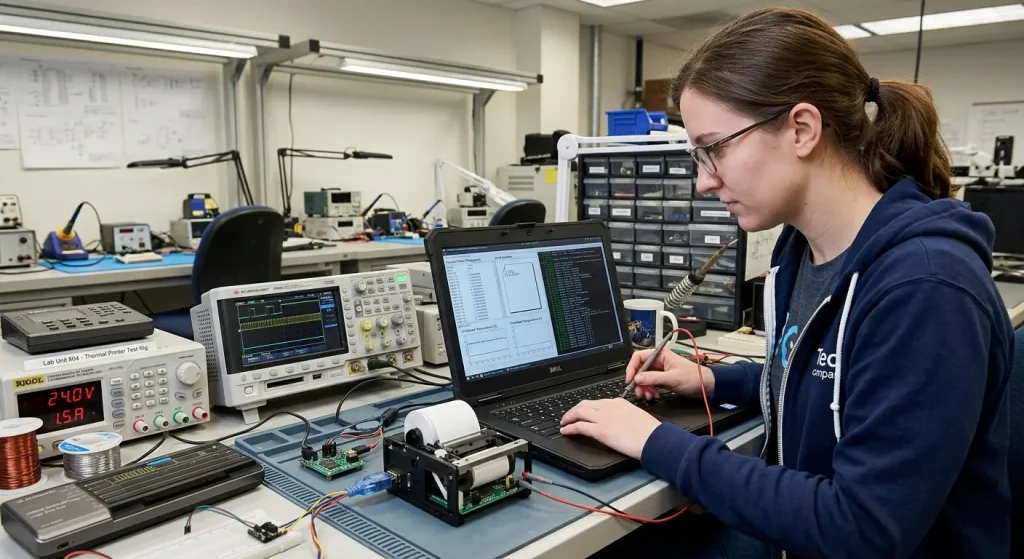
14. Test the Software Architecture Before Production
A successful demo print is useful, but it is only the beginning of integration testing.
For example:
Application → Print → Receipt Produced
proves that basic printing works.
It does not necessarily prove:
- cutter behavior;
- presenter control;
- status monitoring;
- communication recovery;
- error handling;
- repeated transaction reliability.
Depending on the kiosk requirements, prototype testing should cover the selected functions, such as:
- text printing;
- images;
- QR codes or barcodes;
- short and long receipts;
- cutter operation;
- presenter operation, if applicable;
- supported printer status;
- communication interruption;
- error recovery;
- repeated transaction cycles.
A useful validation sequence is:
Connection → Printing → Cutting / Output → Status → Error → Recovery
A successful demo print proves basic communication. It does not prove that the complete kiosk printing workflow is production-ready.
Test the actual software architecture before freezing the production design.
15. SNROKIOSK Kiosk Printer Development Resources
Depending on the printer model, applicable development resources may include:
- printer drivers;
- SDK/API resources;
- communication documentation;
- test tools.
Because available software resources vary by printer model and host platform, confirm the exact printer, operating system, communication method and required functions before development.
The objective is not to download every available package.
It is to select the software path that matches the kiosk application architecture.
Kiosk Printer Software Integration Checklist
Before finalizing the printer software architecture, confirm:
- Printer model: Which production printer will be used?
- Host OS: Windows, Android, Linux or another platform?
- Communication interface: USB, RS232 or another supported interface?
- Driver requirement: Will the application use OS-level printing?
- SDK/API: Is a compatible development package available?
- Command/protocol: Is direct printer control required?
- Print content: Text only or graphics as well?
- QR / barcode: Are machine-readable codes required?
- Cutter control: Does the application need explicit cutter behavior?
- Presenter control: Is a presenter involved?
- Status monitoring: Which printer states must the application know?
- Error recovery: What happens when completion is uncertain?
- Production testing: Has the complete workflow been validated?
If these requirements are clear before development is finalized, selecting the correct software resources becomes much easier.
FAQ
What is a kiosk printer SDK?
A kiosk printer SDK is a software development package that provides programming resources for integrating supported printer functions into an application. Depending on the SDK, it may include libraries, APIs, sample code, documentation and device-control or status functions.
What is the difference between a printer driver and SDK?
A printer driver normally integrates the printer with the operating system’s printing architecture. An SDK provides programming functions that developers can use inside their application. The available functions depend on the printer and software implementation.
Is ESC/POS a printer driver?
No. ESC/POS is a printer command system, not an operating-system printer driver. A driver may internally generate printer-specific data, while an application using direct ESC/POS commands communicates with the printer at the command level.
Is ESC/POS the same as RS232?
No. RS232 is a serial communication interface. ESC/POS is a printer command language. Supported printer commands can be transported through an appropriate communication interface.
Do I need an SDK if the printer supports ESC/POS?
Not necessarily. An application may communicate using supported direct commands without an SDK, but an SDK can simplify development or expose useful application-level functions. The correct choice depends on the printer and software architecture.
Can Android control an ESC/POS kiosk printer?
Potentially, yes, if the printer, Android host hardware, communication interface and software implementation support the required integration. ESC/POS compatibility alone does not guarantee that every Android device can directly control every printer.
Can Windows use both a printer driver and SDK?
Potentially. Some applications may use a driver for printing and an SDK for supported device-specific functions. Whether both can access the printer within the same application or session depends on the printer software architecture and should be verified.
Which integration method should an unattended kiosk use?
There is no single method that fits every kiosk. The appropriate choice depends on the host operating system, application architecture, communication interface, required printer functions, status-monitoring requirements and software resources supported by the selected printer.
Choose the Software Layer Before Finalizing Development
Kiosk printer integration becomes much easier when the different software layers are separated clearly.
Remember:
USB / RS232 = Communication Interface
ESC/POS / Printer Protocol = Printer Commands
Driver = Operating-System Printing Layer
SDK / API = Application Development Layer
The complete architecture may look like:
Kiosk Application
↓
Driver / SDK / Direct Commands
↓
Communication Interface
↓
Printer
There is no universal reason to choose the most direct or most complex method.
The objective is to choose the software path that provides the printing, device control, status information and recovery behavior required by the actual kiosk application.
Define those requirements first, then verify the software resources supported by the selected printer.
Discuss Your Kiosk Printer Integration
Developing a kiosk application and not sure whether to use a driver, SDK or direct printer commands?
Send us your host operating system, controller platform, USB/RS232 interface, print content and required printer-control functions.
We can help evaluate a suitable kiosk printer configuration and provide applicable drivers, SDK/API resources, communication documentation and test tools for prototype integration.